When you pull the text out of a PDF, you get everything printed on the page, including the running header, the footer and the page number. In a RAG pipeline those lines end up inside your chunks. This guide shows why that matters, what it looks like on a real file, and three ways to take them out: by hand, with a short script, or with Agnos.
Why it matters for RAG
A PDF mostly records where each word is drawn on the page, not what the words are for. Ask a PDF library for a page’s text and you usually get the header, the body and the footer as one run of lines, with nothing to say which is which.
A RAG system then cuts that text into chunks, turns each chunk into an embedding (a list of numbers that stands for its meaning), and searches those when someone asks a question. The page furniture travels with the text:
- It lands in the middle of passages. A chunk that crosses a page break reads: the end of one section, a footer, a page number, a header, then the next section. The model gets a broken passage, and so does the person checking its answer.
- It makes chunks look alike. A line printed on every page appears in chunk after chunk. It pulls their embeddings toward one another, and a question that shares its words, such as “confidential”, can match a chunk because of its footer rather than its content.
- It takes up room. Every copy is indexed, counts against your chunk size, and is sent to the model each time the chunk is retrieved.
The same goes for fine-tuning: text full of page numbers can teach a model that page numbers are part of the writing.
A real example
The sample project that comes with Agnos has no PDF, so for this guide we set its staff handbook as a four-page PDF, with a running header, a confidentiality footer and a page number on every page. You can download the PDF (7 KB) and try each method below on it.
This is the end of page 2 and the start of page 3, as Agnos reads them with no cleaning at all (the Fast purpose). The furniture is marked:
Before: the text as read from the PDF
2.1 What we reimburse
1. Travel booked through the workshop account.
2. One evening meal for every night away.
3. Tools bought for a specific job, with the job number.
4. Nothing else without written approval.
Confidential - Internal Use Only
Page 2 of 4
Northwind Tools | Staff Handbook | March 2026
2.2 Travel budget by team
Last year's figures. A zero is a real zero: the team travelled, and it did not overspend.
Those three lines sit at every page break: twelve lines in this file, three hundred in a 100-page manual. Here is the same passage after cleaning with the RAG / Retrieval Corpus purpose:
After: the same text in Agnos’s RAG corpus export
2.1 What we reimburse
1. Travel booked through the workshop account.
2. One evening meal for every night away.
3. Tools bought for a specific job, with the job number.
4. Nothing else without written approval.

2.2 Travel budget by team
Last year's figures. A zero is a real zero: the team travelled, and it did not overspend.
The page break is now a blank line. The table that follows, with its rows of zeros, comes through untouched.
How Agnos names each removal
Agnos does not quietly delete the lines. It lists every one with the rule that removed it, in three places.
In Review
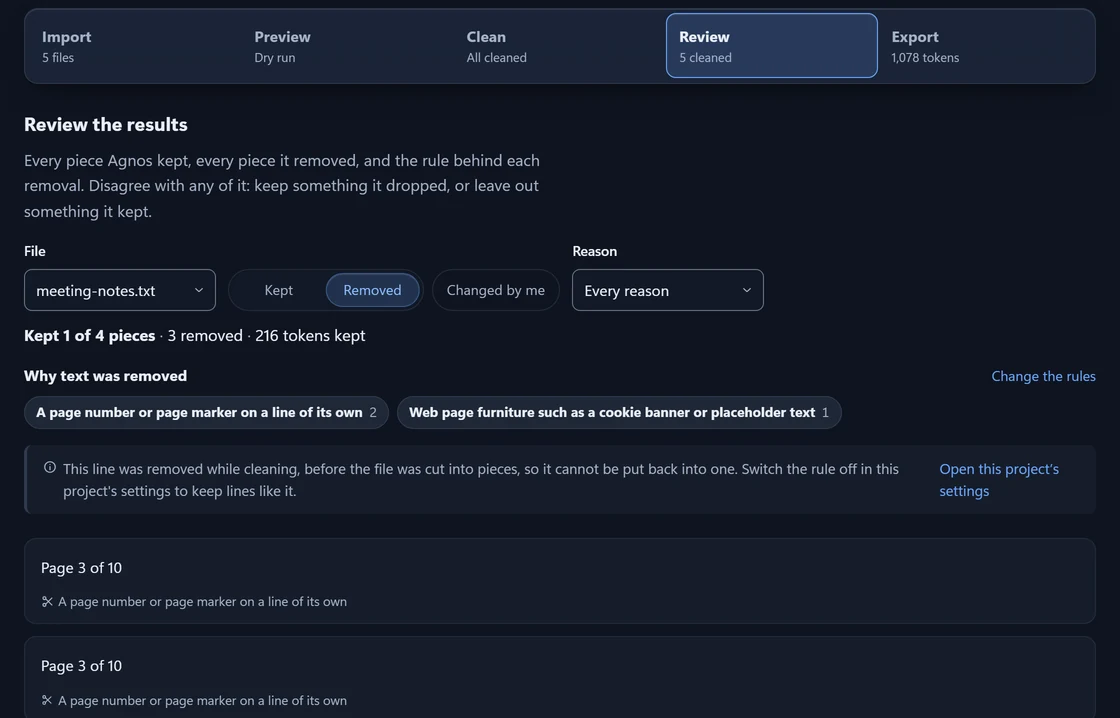
Open Review, choose the file and press Removed. Each line from the handbook PDF is listed as “A running header, footer or page number at the edge of a page”. In a file without pages, a line such as “Page 3 of 10” is named “A page number or page marker on a line of its own”, as in the sample project’s meeting notes:
On the command line
The command line’s review counts the lines removed while cleaning, by rule. For the handbook PDF:
Removed while cleaning, before chunking (lines)
  page furniture              12
In the Everything export
The Everything export includes rejected.jsonl, a record of what was removed: one line for each removed line, with its reason, the stage that removed it, and its page. The first three for the handbook:
{"text": "Northwind Tools | Staff Handbook | March 2026", "reasons": ["page_furniture"], "stage": "cleaning", "page_start": 1, "page_end": 1, "source": "northwind-staff-handbook.pdf", "file_id": 1}
{"text": "Confidential - Internal Use Only", "reasons": ["page_furniture"], "stage": "cleaning", "page_start": 1, "page_end": 1, "source": "northwind-staff-handbook.pdf", "file_id": 1}
{"text": "Page 1 of 4", "reasons": ["page_furniture"], "stage": "cleaning", "page_start": 1, "page_end": 1, "source": "northwind-staff-handbook.pdf", "file_id": 1}
Nine more follow, three for each of pages 2 to 4.
What counts as page furniture
With the RAG / Retrieval Corpus purpose, Agnos looks only at the edges of each PDF page or slide: its first two and last two lines of text. There it removes:
- page markers such as “Page 3”, “Page 3 of 12”, “- 3 -” and “3 / 12”;
- bare page numbers, but only when they count up with the pages, so a lone “42” stays;
- a short line, not a sentence, that repeats at the edge of at least three pages. Numbers in it may change from page to page.
A line in the body of a page is never touched, whatever it says. That is where a table cell holding only a number lives.
Word documents work differently. Agnos does not read a Word file’s page headers and footers at all, so they never reach the text. In the sample project’s Word handbook, the “Confidential - Internal Use Only” banner typed into the body on a line of its own is removed each time, while the clause that begins “Confidential Information means” is kept.
What it does not do
- It reads text-based PDFs only. A scan has no text layer to clean, and Agnos does not read text out of pictures.
- A header that appears on only one or two pages stays.
- Line breaks inside a paragraph stay where the PDF put them.
- Lines removed while cleaning cannot be put back one at a time. To keep lines like them, switch off Remove page furniture and clean the file again; see Change the rules.
Without Agnos: by hand
For a handful of documents, you can do it yourself:
- If you have the file the PDF was made from, start there. In Word, page headers and footers are kept apart from the body, so copying the body text leaves them behind.
- Otherwise, paste the PDF’s text into an editor with find and replace, such as Notepad++ or Visual Studio Code. Delete the header and footer lines, and remove page numbers with a regular expression such as
^Page \d+ of \d+$.
This works, but it is slow, it is easy to miss a line or delete a real one in a long document, and nothing records what you took out.
Without Agnos: a short script
If you write Python, this finds the lines that repeat at the top and bottom of the pages and drops them. It uses pdfplumber (pip install pdfplumber).
import re
from collections import Counter

import pdfplumber  # pip install pdfplumber

EDGE = 2  # lines to check at the top and at the bottom of each page


def shape(line):
    # "Page 3 of 12" and "Page 4 of 12" have the same shape: "page # of #"
    return re.sub(r"\d+", "#", line.strip().lower())


with pdfplumber.open("handbook.pdf") as pdf:
    pages = [(page.extract_text() or "").splitlines() for page in pdf.pages]

# How many pages each edge line appears on
seen = Counter()
for lines in pages:
    seen.update({shape(line) for line in lines[:EDGE] + lines[-EDGE:]})
furniture = {s for s, n in seen.items() if n >= max(3, len(pages) / 2)}

clean_pages = []
for number, lines in enumerate(pages, start=1):
    kept = []
    for i, line in enumerate(lines):
        at_edge = i < EDGE or i >= len(lines) - EDGE
        if at_edge and shape(line) in furniture:
            print(f"page {number}: removed {line!r}")
        else:
            kept.append(line)
    clean_pages.append("\n".join(kept))

text = "\n\n".join(clean_pages)
On the handbook it removes the same twelve lines:
page 1: removed 'Northwind Tools | Staff Handbook | March 2026'
page 1: removed 'Confidential - Internal Use Only'
page 1: removed 'Page 1 of 4'
page 2: removed 'Northwind Tools | Staff Handbook | March 2026'
...
page 4: removed 'Page 4 of 4'
Before you rely on it:
- It needs tuning. A two-line header needs a larger
EDGE, and a short document may not repeat anything often enough to count. - It trusts the order the library reads each page in. Some PDFs put the footer first or break one line in two, so check a few pages by eye.
- A simpler version crops a fixed band off every page, for example
page.crop((0, 60, page.width, page.height - 70)). That is quick, but a page with different margins loses real text. - It prints what it removed. Keep that list: it is how you check the result later.
With Agnos, without code
Start a project. In Projects, press New project and type a name. Check that the purpose is RAG / Retrieval Corpus; if it is not, press Change and choose it. Press Create project.
Add your PDFs. Drop the files, or a whole folder, on the Import step. Each file is cleaned as it arrives.
Check what was removed. Open Review, choose a file and press Removed.
Export. Open Export, choose RAG corpus for a search index or Cleaned documents for plain text files, and press Build and download.
The same steps run from a script with the command line. That is how every Agnos output on this page was made, with Agnos 2.3.0. Everything runs on your computer, and nothing is uploaded.
Next: turn the cleaned text into a file a search index can load, in PDF to JSONL for RAG and fine-tuning.
Try it on your own PDFs
Try everything in Pro free for 14 days, with no card and no account. Agnos runs on Windows 10 and 11, and your documents never leave your computer.